
The Challenge of Staffing Dozens of A&E Projects
Architects and engineers manage dozens of active projects at once. Each project has multiple phases and your staff are spread across all of these projects. When a new project comes in, you need to quickly know who's available, who has logged hours on similar project categories, and who has the right experience for each role.
But with many active projects and staff hours distributed across them, it's hard to quickly see who's available. You manually review past projects to remember who worked on similar work. You check staffing availability across multiple views or spreadsheets. You might assign someone who's already over-allocated across their other projects.
This happens every time you create a project, and you're making the same mental calculations repeatedly: "Who did this before? Who's available?" These small delays add up across projects and phases. You're losing time to manual decision-making instead of focusing on project strategy.
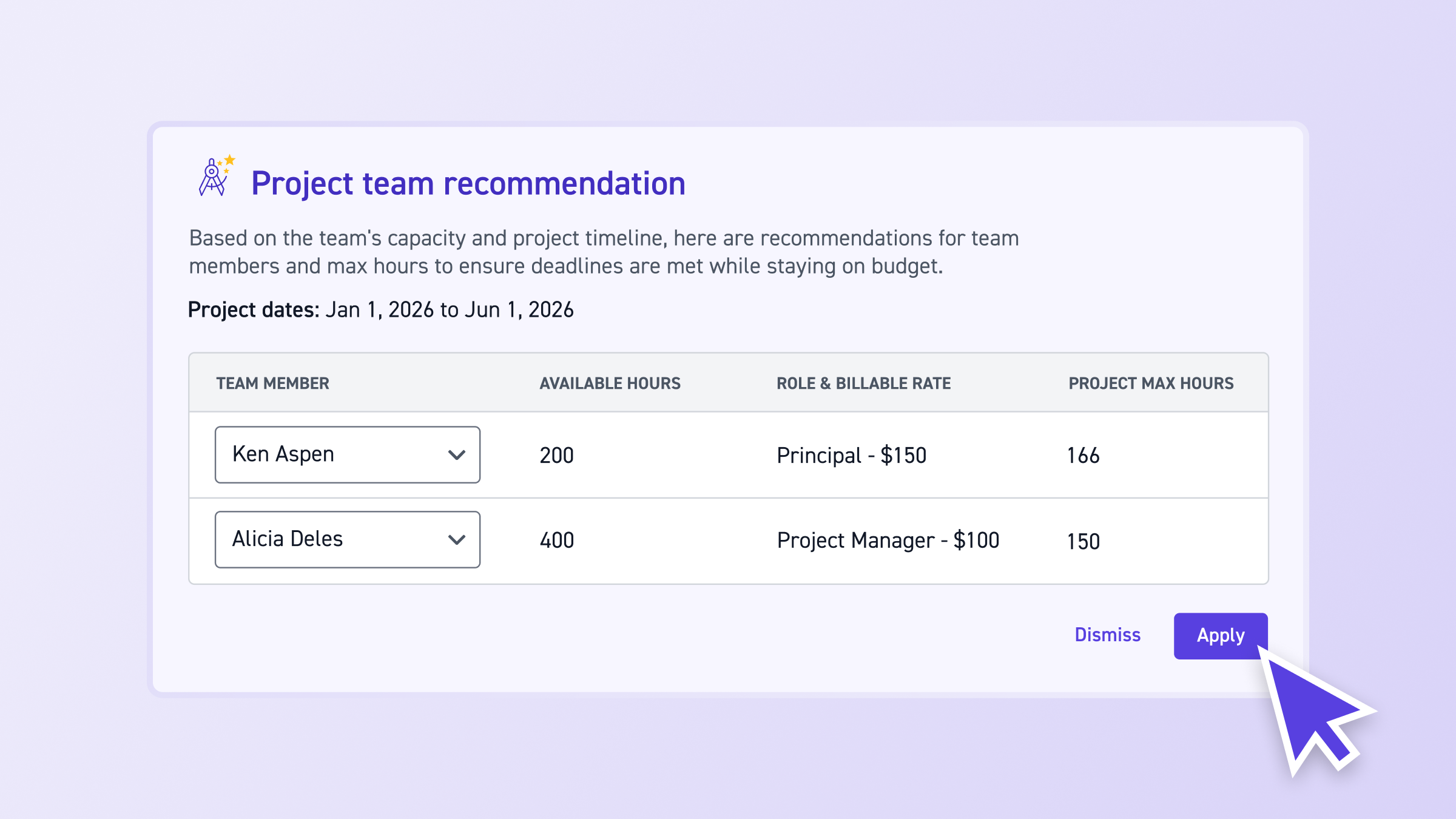
Introducing Project Team Recommendations—Use AI to automatically suggest team members when creating new projects using past data, contract upload, or templates. Based on the team's capacity and project timeline, Monograph's AI provides recommendations for team members and max hours to ensure deadlines are met while staying on budget. You can adjust team members for each role from a dropdown while previewing their capacity, then click "Apply" to assign everyone to all phases with appropriate roles and billable rates in one click.
This is how we build Monograph: features that connect your past project data, current availability, and team member profiles to make intelligent suggestions. Staffing recommendations follow the Monograph Method, connecting project creation methods, past project experience, staffing availability, and role assignments all in one place.
How Manual Staffing Decisions Hurt Your Firm
When you manually assign team members to projects, you're making decisions based on memory and guesswork instead of data. This problem compounds across multiple projects and phases.
What happens when you manually assign team members:
- You waste time reviewing past projects and checking availability. You check staffing availability across multiple views or spreadsheets. You assign team members phase by phase, repeating the same decisions multiple times. These small delays add up: five minutes here, ten minutes there, multiplied across projects and phases.
- You might miss the best person for a role. Without systematic recommendations, you might forget someone who would be perfect for the role. You might assign someone who's already over-allocated, creating capacity problems later. Inconsistent assignments across similar projects mean you're not learning from past experience.
- You make error-prone assignments. Manual assignment is error-prone—you might forget to assign someone to a phase or assign the wrong person. You might assign someone who's already over-allocated without realizing it. Different team members remember different people for different roles, leading to inconsistent assignments.
- You can't systematically leverage past project experience. Without recommendations, you're making the same mental calculations repeatedly instead of learning from what worked before.
- You lose time to manual decision-making instead of focusing on project strategy. Every minute spent manually reviewing past projects and checking availability is time not spent on project strategy, client relationships, or team development.
The real cost:
- Time wasted - Minutes spent per project manually reviewing past projects and availability, multiplied across all projects created (from past data, contract upload, or templates)
- Money lost - Suboptimal assignments lead to inefficiencies, budget overruns, or missed opportunities to leverage team expertise
- Relationship damage - Over-allocating team members creates stress and burnout
- Team frustration - Inconsistent or poor assignments based on memory rather than data
When Recommendations Appear
Team recommendations are available in three project creation methods, as long as roles are defined and there are eligible team members to recommend:
- Build a Project Budget (from past data): When you use the "build a project budget" option and leverage completed projects or templates as reference data, recommendations appear after generating the budget for the roles and phases defined
- Auto-generate from Contract: When you use the "Auto-generate from contract" feature, Monograph extracts phases, roles, and rates from the uploaded contract. After the extraction and review step, recommendations appear for the open roles
- Project Templates: When you create a project from a template, recommendations appear after selecting the template and clicking "Create"
The only method that does not trigger recommendations is "start from scratch," since there is no reference data to inform the suggestions.
How Recommendations Are Generated
Monograph analyzes your past project data to suggest the right team members for each role. The system looks at other projects in the same categories to find team members who have logged time to the same roles and billable rates. The same recommendation logic (suitability and availability) applies across all three creation methods.
What Monograph considers:
- Prior experience and project categories - Monograph examines other projects within the same categories to identify team members who have logged time to the same roles and billable rates. This is the primary factor—if someone has logged hours on similar project categories in the same role, they're considered for recommendations. If your project has multiple categories, it prioritizes the category with the highest number of time logged.
- Staffing availability - Available hours are calculated as available working hours minus staffed time over the project's duration. The system considers both suitability and availability when making recommendations. Availability isn't a hard filter—over-allocated people can still appear with negative available hours shown, so you can see capacity issues while still getting experience-based recommendations.
- Default roles and rates - The system also considers team members' default roles and rates in their profiles.
Based on this analysis, Monograph suggests team members for each role. The system primarily weights team members who have logged hours on similar project categories in the same role. It also considers availability and billable rates, but the exact ranking formula (e.g., whether it prioritizes total hours logged, most recent projects, or a combination) is not explicitly documented. If no team members are available or suitable for a particular role, no recommendation appears for that role—you'll need to manually assign team members to these roles.
See Recommendations with Available Hours
A banner appears at the top of the page when recommendations are available, displaying recommended team members for each role. The banner shows a table with four columns: team member (in a dropdown), available hours, role and billable rate, and project max hours.
What you see:
- Recommended team members - One primary recommendation per role, displayed in a table format. Each row shows a different role (e.g., Principal, Project Manager, Project Designer, Intern).
- Available hours - The hours shown next to each name indicate their available working hours, accounting for existing commitments over the project's duration. Available hours can be negative if someone is over-allocated (e.g., -915 hours), so you can see capacity issues while still getting experience-based recommendations.
- Role and billable rate - Each recommendation shows the role name and billable rate (e.g., "Principal - $250.00", "Project Manager - $150.00"). These match what team members logged time at on similar projects.
- Project max hours - The maximum hours allocated for that role across all phases in the project.
- Dropdown alternatives - Each team member field is a dropdown menu. When you click it, you can see alternative team members to select from. Each person in the dropdown also shows their available hours, so you can compare capacity when selecting alternatives.
The banner includes an introductory message: "Based on the team's capacity and project timeline, here are recommendations for team members and max hours to ensure deadlines are met while staying on budget." Project dates are also displayed (e.g., "Project dates: Dec 12, 2025 to Jul 27, 2026").
You can adjust team members from the dropdown menus, then click "Apply" to assign everyone to all phases, or "Dismiss" to remove the recommendations. Once dismissed, recommendations cannot be regenerated without deleting and recreating the project.
Apply Assignments to All Phases in One Click
Instead of assigning team members phase by phase, you can apply all recommendations to all phases in one click.
When you click "Apply," the selected team members are added to each phase in the project using the applicable role and billable rate. If you select one person for "Project Designer" role, they get assigned to all phases that have the "Project Designer" role. The "PROJECT MAX HOURS" column shows the total maximum hours for that role across all phases, indicating it's a project-wide assignment.
Before applying:
- You can adjust team member selections using the dropdown menus for each role
- Only team member selections can be adjusted before applying
- Changes to roles, billable rates, or hours in phases should be made after applying the recommendations
After applying:
- Selected team members are assigned to all phases with appropriate roles and billable rates
- You can then adjust roles, billable rates, or hours in phases as needed
- If you apply recommendations after team members have already been assigned to phases, it will replace the current assignments (a warning will appear to confirm)
This one-click assignment saves time compared to manually assigning each phase. Instead of repeating the same decisions multiple times, you make the decision once and apply it everywhere.
Staffing recommendations help ensure projects are properly staffed from the start, supporting better project tracking and visibility. They also assign team members with appropriate billable rates, which directly impacts project budgets.
Best Practices
- Review recommendations before applying - Check available hours to see capacity issues. If someone has negative available hours, consider selecting an alternative from the dropdown.
- Use dropdown alternatives when needed - Each dropdown shows alternative team members with their available hours, so you can compare capacity and select the best fit.
- Leave recommendations open if unsure - If you're not sure if you want to use the recommendations yet, leave the banner open and unapplied. It will be available for use after the initial project creation and will only be dismissed automatically once any team member has logged time to the project.
- Adjust after applying - You can adjust roles, billable rates, or hours in phases after applying the recommendations. Only team member selections can be adjusted before applying.
- Check project categories - Recommendations are based on project categories, so make sure your projects (whether from past data, contract upload, or templates) have the right categories assigned to get the best recommendations.
Frequently Asked Questions
How do I adjust the role, billable rate, or project max hours included in the recommendations?
You can adjust team member selections before applying recommendations using the dropdown menus. After applying recommendations, you can then adjust roles, billable rates, or hours in any phases as needed. This gives you flexibility to fine-tune assignments after the initial recommendations are applied.
When do role recommendations appear?
Role recommendations appear automatically when you create projects using methods that leverage your existing project data:
- Build a Project Budget (from past data): After generating the budget from completed projects or templates
- Auto-generate from Contract: After extracting phases, roles, and rates from the contract and completing the review step
- Project Templates: After selecting a template and clicking "Create"
This feature is available for users on the Grow plan.
Which project creation methods support recommendations?
Recommendations are available when you create projects using methods that leverage your existing data: building a budget from past data, auto-generating from a contract, or using templates. These methods provide the reference data needed to generate intelligent recommendations based on your team's past experience and current availability.
Can I use recommendations later if I'm not ready to apply them now?
Yes—you can leave the recommendations banner open and unapplied during project creation. The recommendations will remain available for you to review and apply later. The banner will only be dismissed automatically once any team member has logged time to the project, so you have flexibility to apply them when you're ready.
What if no recommendations appear for a role?
If no team members are available or suitable for a particular role, Monograph will not provide a recommendation for that role. In such cases, you'll need to manually assign team members to these roles.
What if someone has negative available hours?
Available hours can be negative if someone is over-allocated. They can still appear in recommendations if they have strong experience match. The negative hours serve as a warning indicator, and you can select an alternative from the dropdown if needed.