


Firm management made easy

Your Margins Are Won or Lost in the Proposal
Every proposal commits your firm to a price, a scope, and a timeline. Get it right, and the project is profitable before it starts. Get it wrong, and no amount of good delivery fixes bad pricing.
But most architecture and engineering firms build proposals across disconnected tools — budgets in spreadsheets, consultant quotes in email, documents in Word, signatures in DocuSign. Without access to how past projects actually performed, every budget starts from scratch. And each handoff between tools introduces delay, manual re-entry, and the chance for scope and fees to get lost.
Proposals in Monograph connect budgeting, consultant quotes, client-facing documents, and e-signatures in one workflow. Price work using data from past projects, collect consultant quotes in one click, and turn signed proposals into live projects without double-entry. Stronger proposals, more confident pricing, and a clearer path from pursuit to project.
.png)
Here's how it works and why it matters.
How Fragmented Proposals Cost Your Firm
When the steps between "price this project" and "kick off this project" are spread across separate tools, every handoff creates risk. The cost isn't just inefficiency. It's pricing errors, lost consultant quotes, stalled proposals, and projects that start with the wrong budget.
What happens when your proposal workflow is disconnected:
- You start every budget from scratch. Without a way to reference what similar projects actually cost, you're estimating from memory or copying old spreadsheets. Your pricing doesn't improve over time because it's not connected to your past work.
- Collecting consultant quotes is slow. You email consultants, they reply with PDFs or numbers in the email body. You manually enter those into your budget. With multiple consultants across multiple proposals, you're tracking responses across separate threads and consolidating by hand.
- Proposals stall without anyone noticing. You send a proposal and wait. If the client doesn't respond, you have to remember to follow up. There's no automatic nudge, no deadline driving urgency. Proposals sit unsigned because nobody is managing the timeline.
- Your proposal doesn't match your budget. You build a budget in one place and write the proposal in another. If the numbers don't align, you don't find out until the project is underway and fees don't match what you planned.
- Accepted proposals don't carry forward. When a client says yes, someone has to manually create the project, re-enter phases, roles, and rates. Details change in translation. The project starts with a different budget than what was proposed.
Build Budgets Informed by Past Work
From a lead's Overview page, click "Add" next to Budget to open the budget builder. Choose how to start: use an existing project as a reference, use a template, or start from scratch.
When you use a project or template, Monograph generates role and budget recommendations based on matching project categories. The six most recent projects in the same category appear as reference data. Review the recommendations per phase, then apply or dismiss. This means your new budget is informed by what similar work actually cost, not just what you remember.
The budget builder breaks down by phase: linked phases, duration, fee type (hourly or fixed), roles, billable rates, and estimated hours. Add consultant work at the phase or project level with budget and markup. Add expense budgets by category or as a lump sum. Add construction costs if known. Totals update in real time as you build.
If you need to share the budget outside Monograph, click "Copy all budget details" to paste into Word or Google Docs with tabular formatting. For the full budget building workflow, see Creating a Lead's Budget.
Collect Consultant Quotes in One Click
From the lead's budget page, add consultant work and click "Create proposal request email." Monograph generates a draft message with the project details, addressed to the consultant's primary contact. Review, edit if needed, and send.
The consultant receives an email with the project context. When they reply (either in the email body or as an attachment), Monograph auto-detects the proposed budget, updates the lead, stores the file, and notifies you. No downloading. No uploading. No manual entry.
You can see the status of each consultant request directly on the budget page: "Sent" or "Not requested." If a consultant hasn't responded, you can resend the request or send to a different contact. If you receive a proposal outside of Monograph, you can manually upload it as a record.
When the lead converts to a project, the most recent consultant proposal attachments are automatically added to the project's File Hub so nothing gets lost in the handoff. For the full consultant request workflow, see Consultant Proposals.
Send Proposals and Get Client E-Signatures
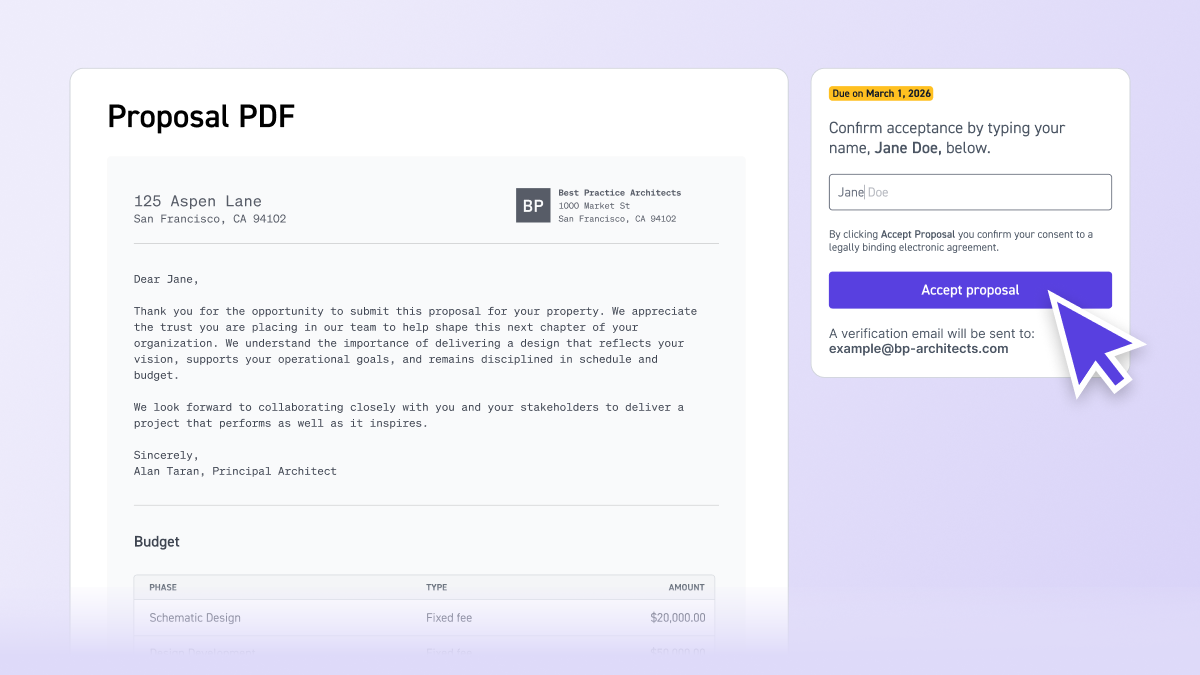
Once your budget is finalized, upload a proposal PDF from the lead's Proposal section. Monograph scans the uploaded document against the lead budget and flags any mismatches: new items, missing items, or budget discrepancies. This gives you a chance to catch errors before the client ever sees the proposal.
Select the approver (defaults to the primary client contact), add an optional note, and click "Send." The client receives an email with a link to view the proposal. They review it, enter their name to sign, and confirm acceptance. No separate e-signature tool. No login required.
Set a deadline on the proposal, and if the client hasn't signed by then, Monograph sends an automatic reminder email. No manual follow-up needed.
When a client accepts, the lead automatically moves to Closed/Won and a project is generated using the lead's budget, phases, roles, and rates. The signed proposal PDF is downloadable with evidence of acceptance: date, time, and signer details. For the full proposal and e-signature workflow, see Creating and Sending Proposals.
Best Practices
- Start budgets from past projects, not from scratch. Use a similar completed project or template as your starting point. Your pricing gets more accurate over time because it's informed by real data.
- Send consultant requests early. The sooner you request consultant quotes through Monograph, the sooner they auto-update your budget when they respond. This removes the bottleneck of waiting on email threads.
- Check mismatch alerts before sending. Review the flagged discrepancies between your uploaded proposal and your lead budget. Catching misalignment before the client sees it avoids rework and awkward corrections later.
- Set deadlines on every proposal. Even a generous deadline drives action. The automatic reminder means you don't have to track who hasn't signed.
- Use "Copy all budget details" for external documents. If your firm requires a formatted proposal document in Word or PDF, copy the budget details to paste into your template before uploading the final version.
Frequently Asked Questions
How do I start building a budget for a lead? Create a lead on the Pipeline page, navigate to its Overview, and click "Add" next to Budget. Choose your creation method: use a template, use an existing project, or start from scratch.
What happens when a consultant replies to a proposal request? Monograph auto-detects the proposed budget from their email reply (body or attachment), updates the lead budget, stores the file, and sends you a notification. If the budget can't be determined, the consultant receives an error email to resubmit.
Can clients sign proposals without a Monograph account? Yes. Clients receive an email with a link to view and sign the proposal. If their email isn't linked to a Monograph account, one is created automatically during acceptance.
What does proposal mismatch scanning check? When you upload a proposal PDF, Monograph compares it to the lead budget and flags new items, missing items, or budget discrepancies so you can resolve them before sending.
Can I edit a budget after sending a proposal? You can edit the lead's budget at any time before it's marked as Closed/Won. Once the lead converts to a project, changes must be made in the project's Budget page.
What happens to voided or replaced proposals? If a proposal is replaced with a new version, clients who try to open the original link see a message that the proposal is no longer available.
Proposals Don't End at the Signature
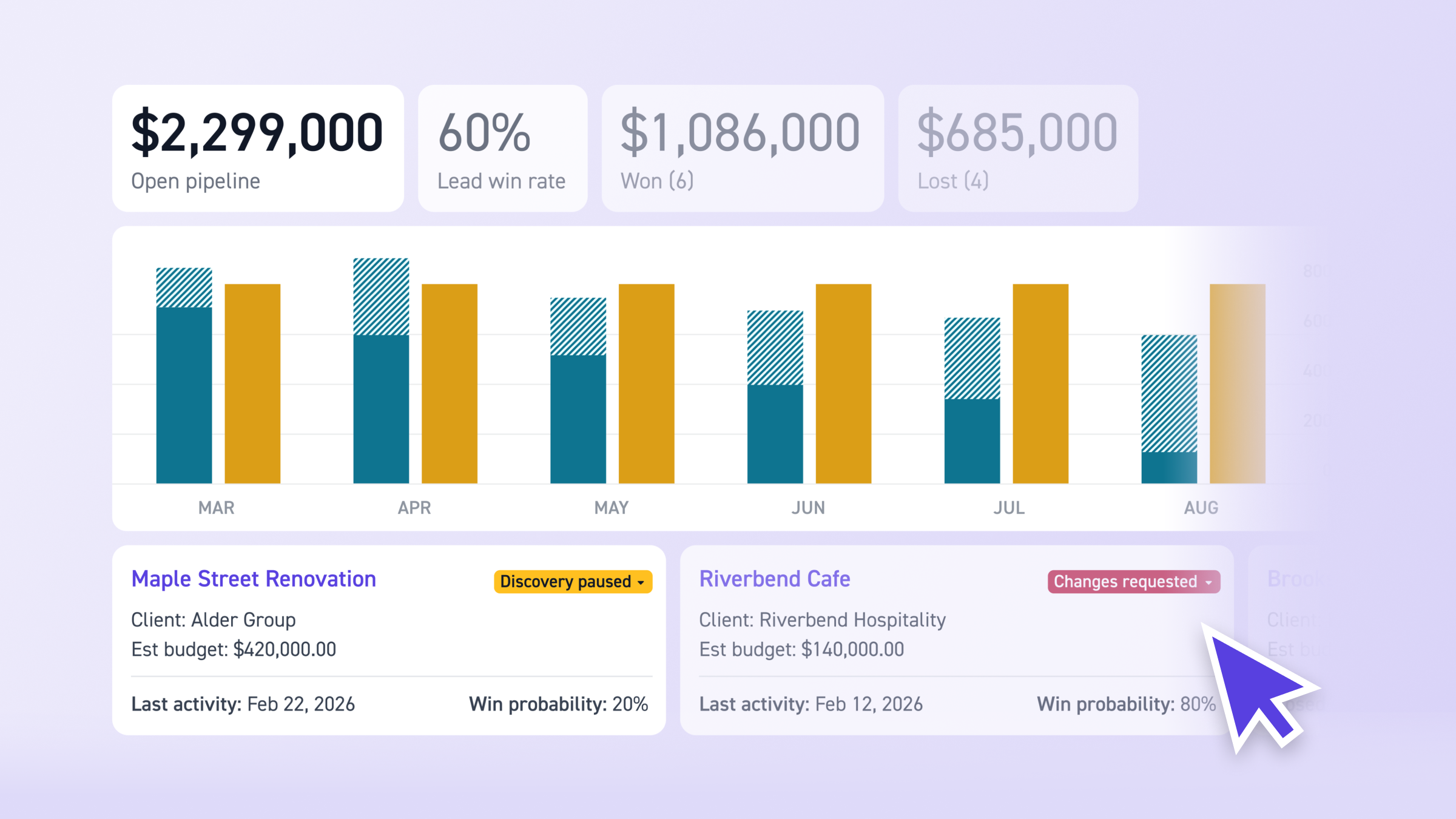
Proposals is one piece of Pipeline — a system that also tracks leads, forecasts capacity, and projects revenue. One place to run confident business development from pursuit to project.