


Firm management made easy

The Most Important Work Happens Before the Project Starts
Every principal architect and engineer has a side job in business development. Meeting with clients, following up on referrals, chasing leads, writing proposals. It takes time away from projects, and the software that exists to help was built for sales teams, not project-based firms where a single client relationship generates multiple opportunities over years.
So most firms end up using spreadsheets, inboxes, and memory instead. When someone asks "what's our pipeline look like?" the answer takes thirty minutes to assemble and is outdated by the time you have it.
Leads in Monograph give your firm team-wide visibility into every opportunity: what's in pursuit, where it stands, and how likely it is to close. When you win, the lead becomes a project without double-entry anything. When you lose, you capture why. Fewer missed opportunities, clearer ownership, and a firm that wins more of the right work.
Here's a closer look at why it matters and how it works.
How Scattered Lead Tracking Hurts Your Firm
Without a shared pipeline, every person on your team has a different version of what's being pursued, where things stand, and what's likely to close. The cost of this is disorganization, missed work, wasted effort, and decisions made on bad data.
What happens when leads aren't tracked in one place:
- Opportunities get lost. A referral comes in by email and gets buried. Nobody follows up for weeks. By the time someone remembers, the client has moved on. There's no shared system to capture it, assign ownership, or track follow-up.
- Stalled leads disappear from attention. That proposal you sent two months ago: is it dead? Did the client go quiet? Without a pipeline view, stalled opportunities don't surface. They just fade out until someone asks, and by then it's too late.
- You can't prioritize. You have several leads at once. Some are large projects, some are small. Some are repeat clients, some are cold leads. Without seeing them side by side with status, budget, and probability, you can't decide where to spend your time.
- Everyone has a different version of the truth. The principal thinks there are four proposals out. The ops lead thinks it's three. An associate knows one was rejected last week but didn't tell anyone. No one is working from the same data.
- BD and operations are disconnected. You win a project, but operations didn't know it was coming. Now you're scrambling to staff it because there was no shared view of what was in the pipeline.
- Win rates and patterns are invisible. You don't know your win rate. You don't know which project types or clients you win most often. You can't learn from losses because they aren't tracked.
See Your Full Pipeline at a Glance
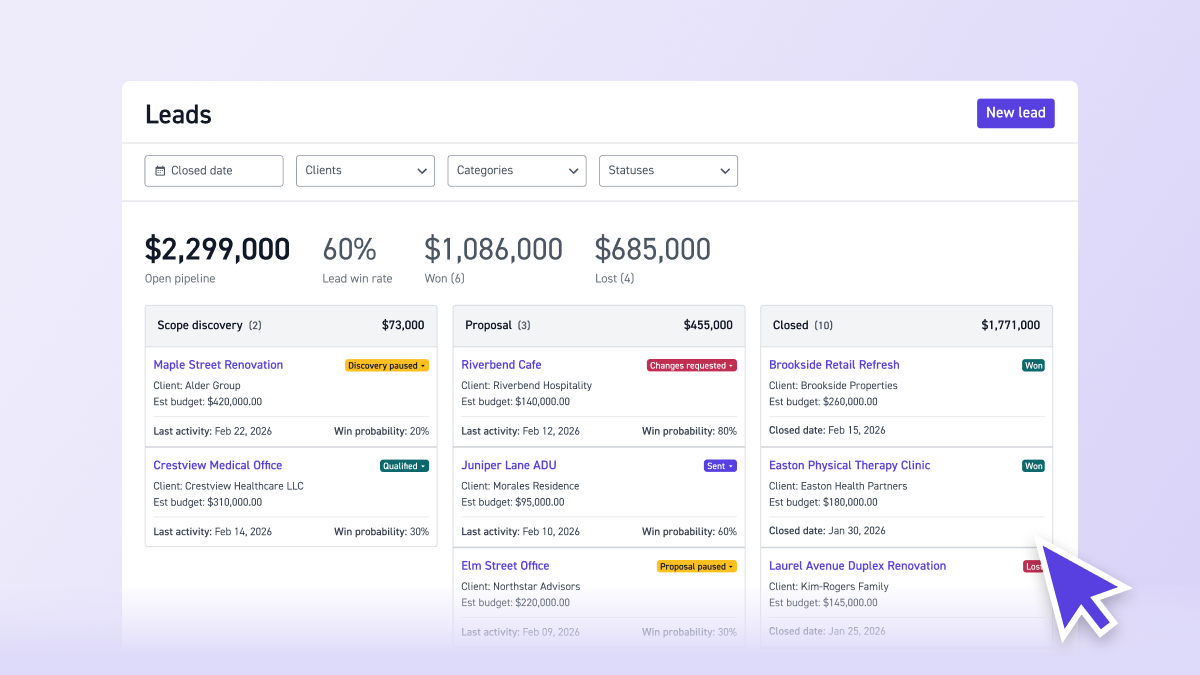
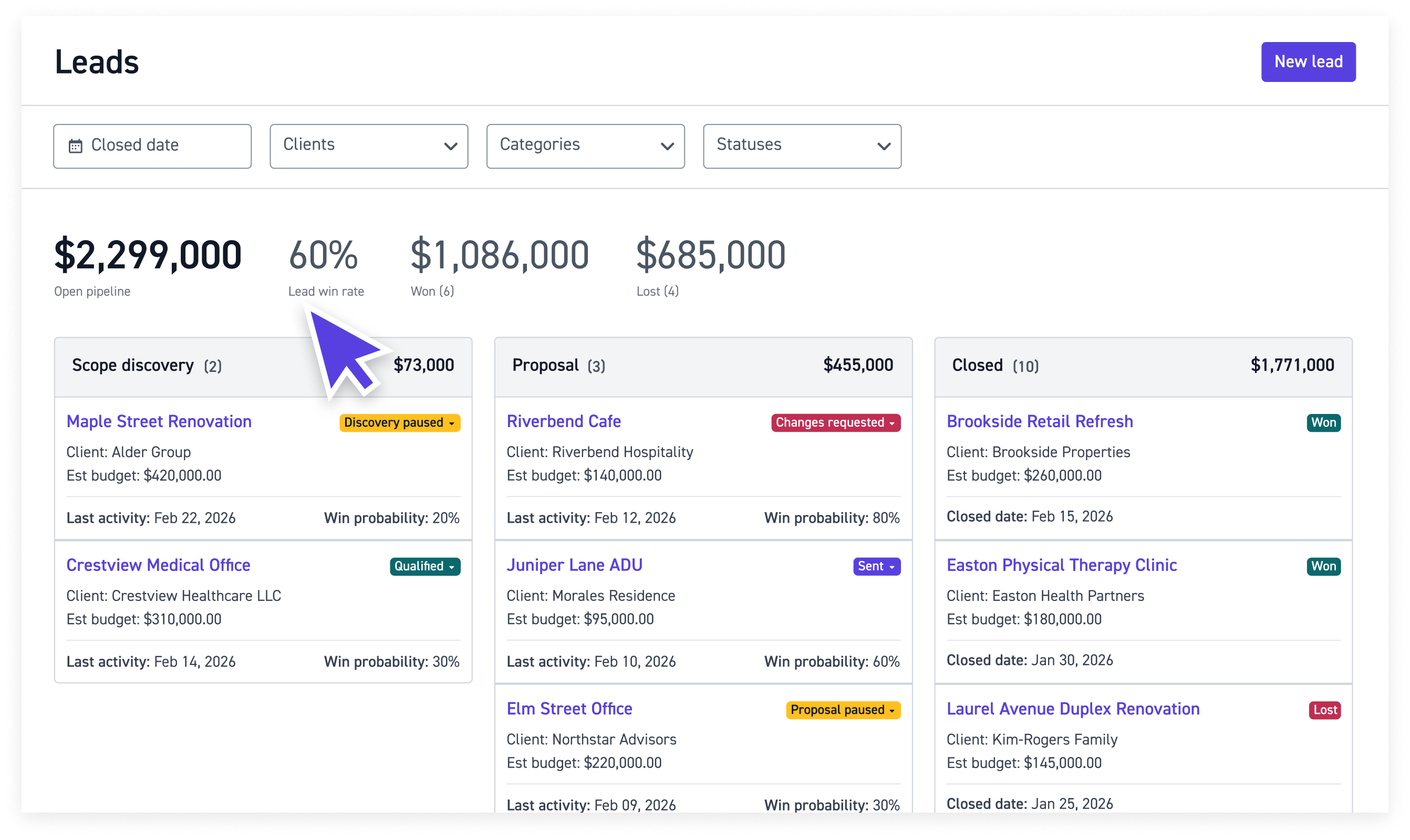
Pipeline shows all your leads in a kanban-style board, organized by stage. Each lead card shows the project name, client, budget, last activity date, and a color-coded status badge. At the top of the page, summary metrics show your open pipeline dollar amount, lead win rate, total won, and total lost.
Leads move through three stages:
- Scope Discovery: New Lead, Qualified, Discovery Paused
- Proposal: Started, Sent, Changes Requested, Proposal Paused
- Closed: Won (generates a project), Lost (captures the reason)
Use filters to narrow down by closed date, client, category, or status. Click any lead to open its Overview page, where you can see project details, location, scope notes, budget information, and an activity log of all notes and status changes.
This replaces the mental model of "I think we have a few things going on" with a concrete, shared view that updates in real time. Everyone with permissions sees the same board, the same statuses, and the same numbers. For a full walkthrough, see Managing the Pipeline.
Create Leads with the Details That Matter
Click "New Lead" and enter the information that matters for tracking an opportunity: project name, client, estimated budget, categories, square footage, and lead source (client referral, consultant referral, social media, or website).
Once created, the lead's Overview page gives you space for project definition details (location, scope, goals), budget planning, proposal management, and notes. Notes support file uploads and transcription, so meeting notes and call summaries stay attached to the lead.
Client information pulls directly from your Client Directory, so contact details stay connected. And in the Client Directory, you can filter clients by lead stage to see which clients have active leads and how many are in each stage. For step-by-step details, see Creating Leads.
Turn Won Leads into Projects Without Double-Entry
When a lead is won, click "Won" and Monograph generates a project using the lead's budget, phases, roles, and rates. No copying from spreadsheets. No re-entering scope details. No handoff gaps between the person who won the work and the person who delivers it.
If a lead doesn't work out, click "Lost" and select a reason. That reason is stored in the lead's details, so over time you build a record of why work was lost, not just that it was.
Team members can log time directly to leads before they become projects. When someone selects a role and phase on a lead in their timesheet, they're automatically assigned that role and its rate. This means BD effort is tracked as lead-specific time, not generic overhead, giving you a clearer picture of the cost of pursuing work. For more on time logging and other common questions, see Pipeline/Leads FAQs.
Track Win Rates and Pipeline Health
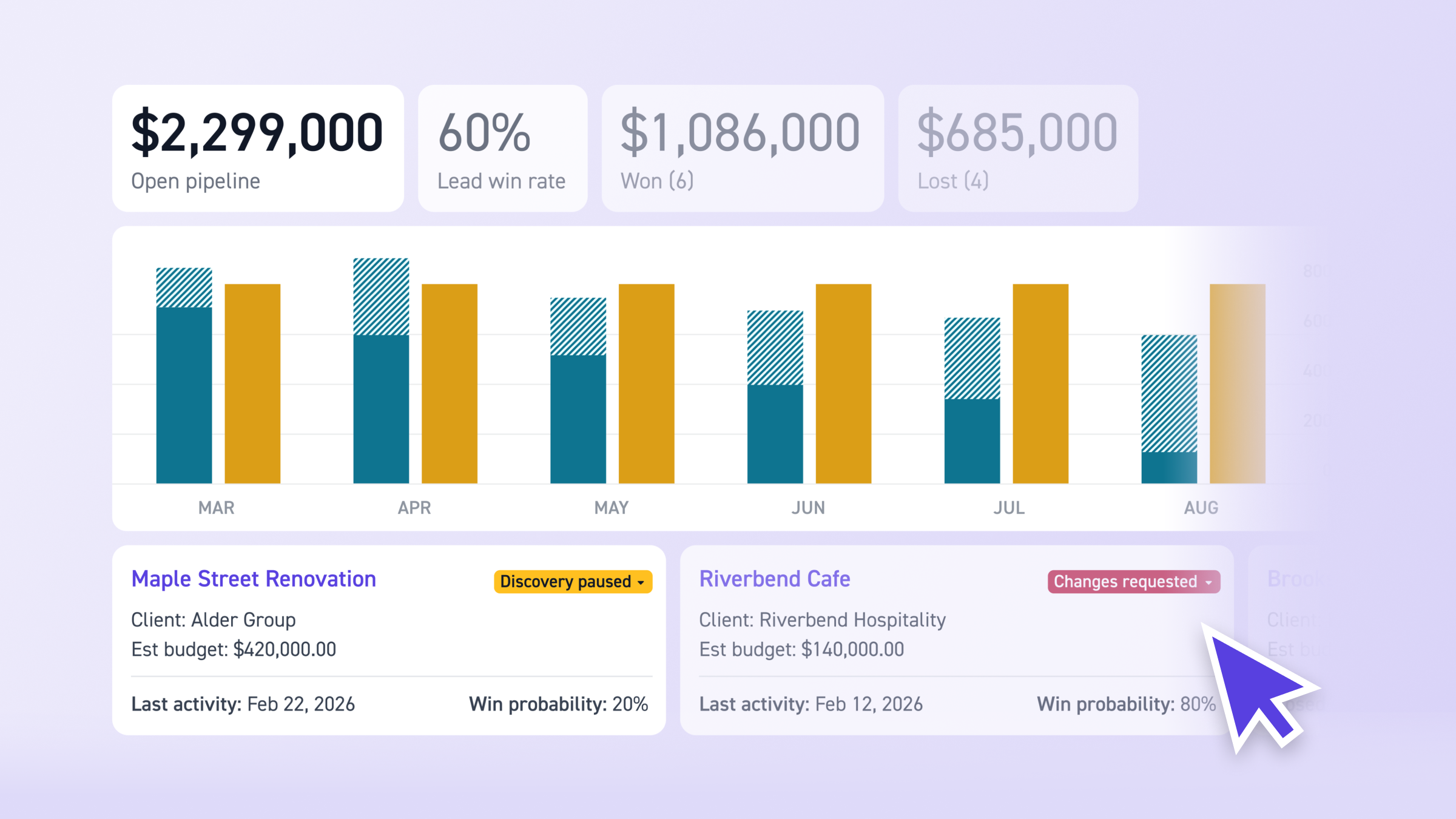
Pipeline tracks your firm-wide metrics: open pipeline dollar amount, lead win rate, total won, and total lost. These update as leads move through stages and are filtered by the same criteria as the board (client, category, status, closed date).
Over time, this builds a dataset. You start to see patterns: which project types you win most, which clients convert, what your average win rate is, and where leads stall. This turns business development from a gut-feel activity into something you can measure and improve.
Each lead also carries a win probability, defaulting based on its status: 10% for new leads, 30% for qualified, 60% for sent proposals. You can override this with a custom estimate from the lead's overview page. These probabilities feed into the Leads Capacity Report and Leads Revenue Forecast Report, connecting your pipeline data to staffing and financial planning.
"Pipeline has really given us a clear view of staffing our opportunities as well as our retention rate for those opportunities. It's been a great tool and given us really valuable insight into our business."
— Andrew Lyon, Principal, Studio Lyon Szot
Best Practices
- Capture leads immediately. Create a lead as soon as an opportunity surfaces, even before you have all the details. A lead with just a name and client is better than a referral sitting in someone's inbox.
- Update statuses as things change. Move leads through stages in real time. This keeps the board accurate and surfaces stalled leads before they slip away.
- Use the lead age filter for follow-ups. Regularly check for older leads that haven't had recent activity. If a lead has gone quiet, it's a signal to follow up or move it to paused.
- Track lost reasons. When marking a lead as lost, always select a reason. Over time, this data shows you why you're losing work and where to adjust.
- Follow leads you're involved in. Follow leads to get notifications on status changes, won/lost updates, and notes. You'll automatically follow leads you create or log time to.
Frequently Asked Questions
Who can access Pipeline and create leads? Admins and users with the "Manage Leads" permission can access the Pipeline page, create and edit leads, send proposals, and view lead reports.
Can team members log time to leads? Yes. Once a lead has a budget, team members can log time to it in their timesheets. They select a role and phase, and they're automatically assigned that role and rate within the lead.
What happens when I mark a lead as "Won"? Monograph generates a project using the lead's budget information, including phases, roles, and rates. You can edit the project after it's created.
How do lead metrics update? Pipeline metrics (open pipeline amount, win rate, won/lost totals) update in real time as leads move through stages. Filters apply to the metrics as well.
Can I associate QuickBooks Online costs with leads? Yes. Costs imported from QuickBooks Online can be associated with leads using the same process as for projects.
What does archiving a lead do? Archiving removes a lead from the active pipeline view. Archived leads can't be edited but retain all their data. You can unarchive them at any time.
This Is Where Pipeline Starts
Most firms piece together their business development from five different tools. Pipeline puts it in one place: leads become proposals, proposals become projects, and every decision along the way — who to hire, what to pursue, how revenue looks — is grounded in the same data.