
The Challenge of Creating Accurate Project Budgets
Architects & Engineers don't undercharge on purpose. Proposals get rushed. Clients shop firms. Staffing is already stretched thin. So you estimate. You guess. You hope the fee covers it.
But now you're managing many active projects. Some don't have enough time. Others are already over budget. Some already have add services just to stay afloat. Because you didn't have data you can trust. Or you didn't have the time to analyze it. And clients can't wait.
This happens every time you create a new project budget. You're making the same mental calculations repeatedly: "How long did that phase take? Who worked on it? How many hours did we actually log?" You manually review completed projects to remember how long phases took. You estimate hours based on what you think happened, not what actually happened. These estimates add up across projects and phases.
The ideal solution would be simple: Find your similar past projects. Suggest hours and rates based on timesheets. Assign staff based on availability and experience. This is how Monograph works today.
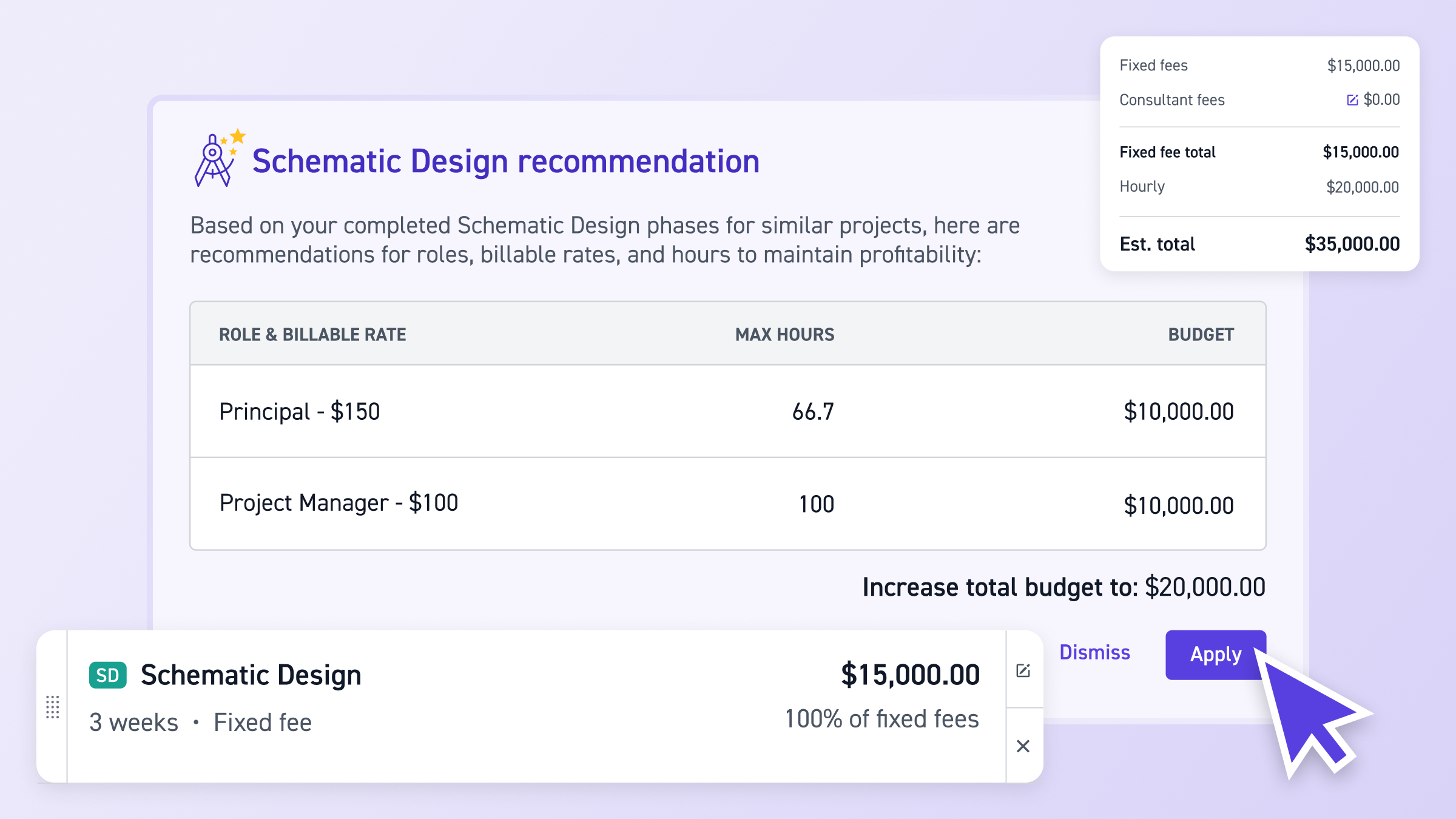
Introducing Budgets Recommendations—automatically calculate draft project budgets based on actual time logged from completed projects. Select the "Build a project budget" option when creating a new project, fill out project details including a representative range of service fees, and Monograph recommends completed projects or templates whose time logged will be used as reference data. A draft budget is created with phase budget recommendations based on actual time logged. Accept or dismiss recommendations for each phase, then adjust details as needed.
This is how we build Monograph: features that connect your past project data, actual time logged, and budget creation to make better decisions for new projects. Auto-generate Project Budgets from Past Data follows the Monograph Method, centralizing your historical project data so you can learn from what actually happened instead of relying on memory. It simplifies the complex process of manually creating budgets by providing intelligent recommendations at the moment you need them, empowering you to make data-driven budget decisions faster.
How Manual Budget Creation Hurts Your Firm
When you create budgets manually, you're making decisions based on memory and estimates instead of actual data. This problem compounds across multiple projects and phases.
What happens when you create budgets manually:
- You waste time reviewing past projects and estimating hours. You manually review completed projects to remember how long phases took. You estimate hours based on what you think happened, not what actually happened. You create budgets phase by phase, repeating the same estimates multiple times. These small delays add up: ten minutes here, fifteen minutes there, multiplied across projects and phases.
- You create budgets that don't reflect reality. Without actual time logged data, you might underestimate how long phases take, leading to projects that go over budget. You might overestimate and create quotes that are too high, losing potential work. Inconsistent budgets across similar projects mean you're not learning from past experience.
- You make error-prone estimates. Manual budget creation is error-prone—you might forget to include a phase, underestimate hours for a role, or miss important details. Different team members remember different things about past projects, leading to inconsistent budgets.
- You can't systematically leverage past project experience. Without recommendations based on actual data, you're making the same mental calculations repeatedly instead of learning from what actually worked before.
- You lose time to manual budget creation instead of focusing on client relationships. Every minute spent manually reviewing past projects and estimating hours is time not spent on project strategy, client relationships, or team development.
The real cost:
- Time wasted - Minutes spent per project manually reviewing past projects and estimating hours, multiplied across all projects created
- Money lost - Inaccurate budgets lead to projects that go over budget or quotes that are too high, losing potential work
- Client relationship damage - Projects that go over budget damage client trust and relationships
- Team frustration - Inconsistent budgets based on memory rather than data create confusion and frustration
- Missed learning opportunities - Can't systematically leverage past project experience to make better budget decisions
How Budget Recommendations Work
Auto-generate Project Budgets from Past Data analyzes your past project data to create draft budgets for new projects. The system looks at actual time logged from completed projects or templates to recommend budgets based on what actually happened, not estimates.
The process:
- Select "Build a project budget" when creating a new project
- Fill out project details including:
- Project name
- Client
- Category
- Representative range of service fees that your client has budgeted
- Select reference data - Monograph recommends a list of completed projects or templates whose time logged will be used as reference data. You can choose from:
- Template-based approach: If you have existing project templates, Monograph can generate a new project from your template and recommend a budget based on the actual roles and their time logged on completed phases from past projects that used this template
- Specific project reference: Use time logged from a completed project with similar characteristics. Monograph will start with a duplicate of the actual project and then recommend a budget based on the roles' time logged
- Review recommendations - Monograph generates an initial budget recommendation based on actual time logged in the reference data. If there is a difference between the actuals and the baseline budget for the original project or template, that will be called out as a change
- Accept or dismiss - You can accept or dismiss these recommendations for each phase. Accepting will apply the recommendation(s) to the phase(s), while dismissing will revert the roles and their hours to whatever was originally set in the reference data
- Adjust and finalize - After accepting and adjusting details as needed, you can update the status of the project from Draft to either Active or Proposed
If no completed projects match: You can build your budget from scratch with estimations of the total time needed to complete the project.
See Recommendations Based on Actual Time Logged
When you use Auto-generate Project Budgets from Past Data, you see a draft budget with phase budget recommendations based on actual time logged from reference projects.
What you see:
- Recommended list of completed projects or templates - The system recommends a list of completed projects or templates that match your project details (project name, client, category, service fee range). You select which one(s) to use as reference data.
- Draft budget with phase budget recommendations - Each phase shows:
- Roles and their recommended hours based on actual time logged
- Budget recommendations for each phase
- Any differences between actuals and baseline budget (called out as changes)
- Ability to see which reference data was used - You can see which completed projects or templates were used as reference data, so you know where the recommendations came from.
- Option to accept or dismiss recommendations - You can accept or dismiss recommendations for each phase individually, giving you control over which recommendations to apply.
The recommendations are based on actual time logged from completed projects, providing more accurate and realistic budgets than estimates. This helps you achieve desired profit margins by learning from what actually happened on past projects.
Accept or Adjust Recommendations by Phase
You have granular control over budget recommendations. You can accept or dismiss recommendations for each phase individually, giving you flexibility to apply what makes sense and adjust what doesn't.
Accepting recommendations:
- Click accept for a phase to apply the recommendation
- The roles and hours from the reference data are applied to that phase
- You can then adjust details as needed (roles, hours, budgets)
Dismissing recommendations:
- Click dismiss for a phase to revert to whatever was originally set in the reference data
- This gives you a starting point while allowing you to make your own adjustments
Adjusting after accepting:
- After accepting recommendations, you can adjust roles, hours, or budgets as needed
- This lets you fine-tune the budget based on the specific needs of this project
Change indicators:
- If there is a difference between the actuals and the baseline budget for the original project or template, that will be called out as a change
- This helps you see where the reference project went over or under budget, so you can make informed decisions
This granular control means you're not locked into recommendations—you can use them as a starting point and adjust based on what makes sense for this specific project.
Auto-generate Project Budgets from Past Data helps you create project budgets that reflect the actual time and effort required, leading to more predictable costs and improved project budget management. By leveraging your firm's historical project data, you can make better budget decisions for new projects.
Best Practices
- Review recommendations before accepting - Check the phase budget recommendations to see if they make sense for this project. Look for change indicators that show where the reference project went over or under budget.
- Select the best reference data - When multiple projects or templates match, choose the one that's most similar to your new project in terms of scope, complexity, and client type.
- Use change indicators to inform decisions - If the reference project went over budget in certain phases, consider whether this project might have similar challenges and adjust accordingly.
- Adjust after accepting - After accepting recommendations, fine-tune roles, hours, or budgets based on the specific needs of this project. The recommendations are a starting point, not a final answer.
- Build from scratch when needed - If no completed projects match the details for this project, you can build your budget from scratch with estimations. This is still faster than starting completely from scratch, since you have the project structure already set up.
- Check project categories - Recommendations are based on project categories, so make sure your projects have the right categories assigned to get the best recommendations.
Frequently Asked Questions
When do budget recommendations appear?
Budget recommendations appear when you select the "Build a project budget" option when creating a new project. After you fill out project details (name, client, category, service fee range) and select reference data (completed projects or templates), Monograph generates phase budget recommendations based on actual time logged.
Which projects can I use as reference data?
You can use any completed projects or templates with completed projects as reference data. The system recommends a list of projects or templates that match your project details (project name, client, category, service fee range), and you select which one(s) to use.
What if no completed projects match my project details?
If no completed projects match the details for this project, you can build your budget from scratch with estimations of the total time needed to complete the project. The project structure is still set up, so you're not starting completely from scratch.
How are phase budget recommendations calculated?
Phase budget recommendations are made based on the actual time logged on the reference project(s). The system looks at actual roles and their time logged on completed phases from past projects that used the same template or from the specific completed project you select. If there is a difference between the actuals and the baseline budget for the original project or template, that will be called out as a change.
Can I see which projects were used as reference?
Yes, the system shows a recommended list of completed projects or templates, and you select which one(s) to use as reference data. You can see which reference data was used when reviewing recommendations.
Can I adjust recommendations after accepting them?
Yes, after accepting recommendations, you can adjust roles, hours, or budgets as needed. The recommendations are a starting point that you can fine-tune based on the specific needs of this project.
Who can use Auto-generate Project Budgets from Past Data?
This feature is available exclusively to users on the Grow Plan. You also need permissions to create and edit projects (Admins and users with both "Edit all projects" and "Create projects" permissions).