
What Happens When You Can't See Consultant Costs in One Place?
As an architect running a firm, you work with consultants on every project. Structural engineers. MEP engineers. Landscape architects. Civil engineers. You need to see which consultants have been paid, which bills are still owed, and what your total consultant costs are across all projects.
But consultant financial information lives everywhere. Bills are in QuickBooks. Project costs are in spreadsheets. Payment status is in project files. Every time you need firm-wide consultant visibility, you're compiling data from multiple systems, spending hours pulling together what should be a simple question: What's the financial status of our consultants?
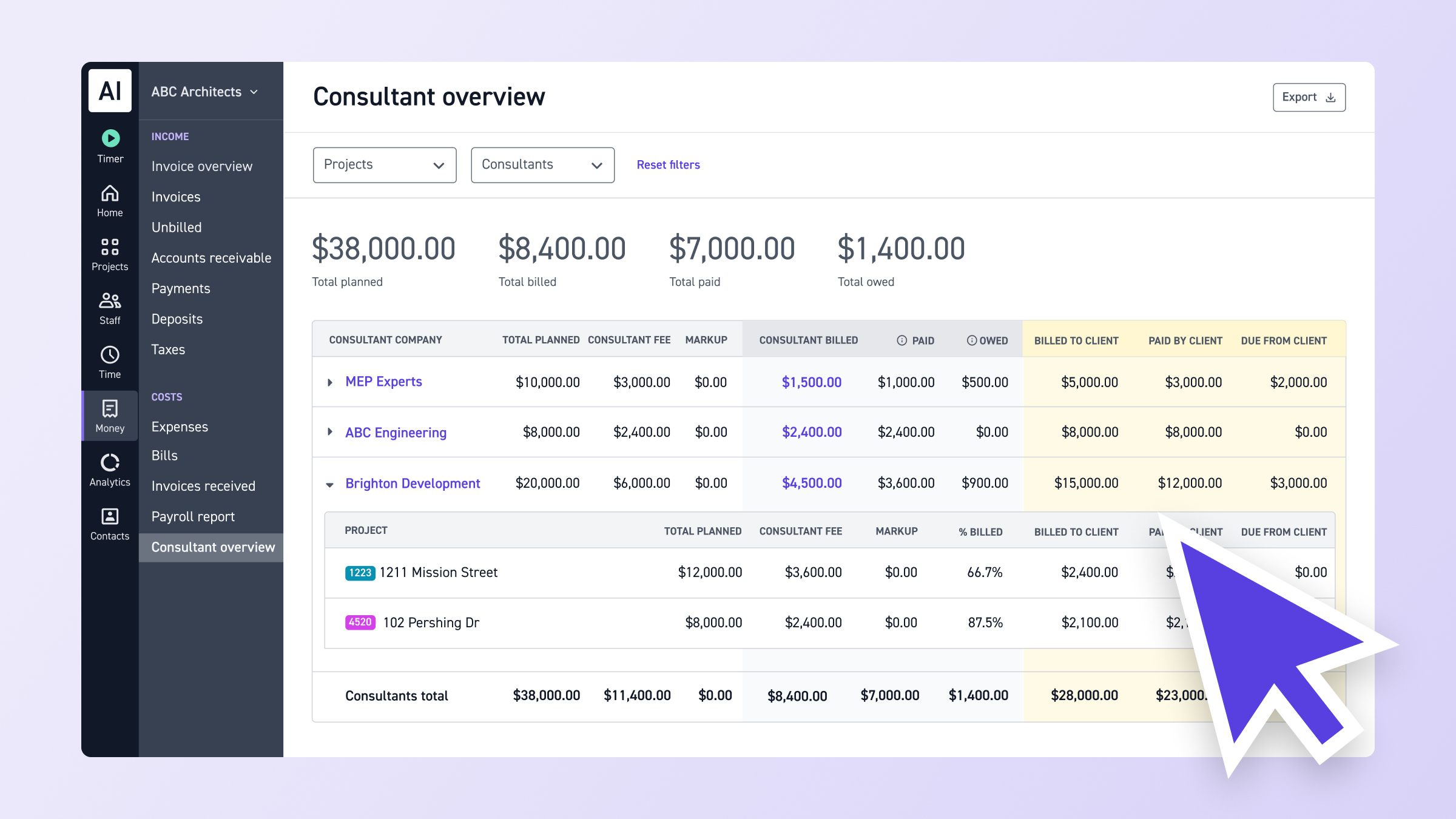
Consultant Overview Report gives you firm-wide visibility across every consultant and project. See all your consultant financials in one place: planned, billed, paid, and owed amounts for every consultant firm. No more digging through spreadsheets or jumping between systems.
This is how we build Monograph: features that show you both sides of the financial picture so you can see cash flow risks and make informed decisions. Consultant Overview Report follows the Monograph Method, connecting what you owe consultants to what clients owe you, so you can track timing gaps and manage cash flow proactively.
How Scattered Consultant Financials Hurt Your Firm
When consultant financial information lives across multiple systems, you can't see the full picture of consultant costs, payment status, or financial health.
What happens without firm-wide consultant financial visibility:
- Time wasted on data compilation - You spend hours every month or quarter pulling together consultant financial reports from multiple sources. Your accounting team compiles data from QuickBooks, project files, and spreadsheets just to answer basic questions about consultant costs.
- Hidden cash flow risks - You can't see when you've paid consultants but clients haven't paid you yet. You might have already paid consultant bills while client payments for those same services are still outstanding, creating cash flow gaps you can't track.
- Timing mismatches you can't track - You might owe consultants money while clients owe you money for those same services, but you can't see both sides together. Without visibility into what you pay consultants AND what clients pay you for consultant services, you can't manage cash flow proactively.
- Delayed decision-making - You can't make informed decisions about consultant spending without firm-wide visibility. You can't identify which consultant bills are overdue or which consultants have payment issues, leading to more cash flow problems.
- Missed margin opportunities - You can't see the difference between what you pay consultants and what you bill clients across all projects. Without this view, you miss opportunities to improve consultant margins.
View Total Consultant Costs Across All Projects
Go to Money → Consultants to see a complete list of all consultant firms your company works with.
The report shows planned, billed, paid, and owed amounts for each consultant firm, aggregated across all projects. Each row represents one consultant company with their financial data:
- Total Planned - the amount entered in your Project Budget's Consultant Services section
- Consultant Fee - the actual consultant fee amount (what you pay the consultant)
- Markup - the markup you apply to consultant services
- Consultant Billed - with Paid and Owed sub-columns tracking payment status
- Billed to Client - what you've billed clients for consultant services
- Paid by Client - client payment status for consultant services
- Due from Client - what clients still owe for consultant services
See both consultant AP and AR in one view: Track what you owe consultants (Consultant Billed, Paid, Owed) AND what clients owe you for those same consultant services (Billed to Client, Paid by Client, Due from Client).
This dual view helps you identify cash flow risks and timing mismatches. You can see when you've paid consultant bills but clients haven't paid you yet for those services, or compare what you owe consultants vs. what clients owe you.
The report connects to Monograph's project accounting capabilities, centralizing all consultant financial information across all projects to support accurate tracking and reporting.
Drill Into Project-Level Details
Click the dropdown arrow next to any consultant's name to expand and view all associated projects with project-level financials.
When you expand a consultant row, you see a sub-table showing each project's consultant costs. The project-level view mirrors the same financial columns as the main table: Total Planned, Consultant Fee, Markup, Consultant Billed (Paid/Owed), % Billed, Billed to Client, Paid by Client, and Due from Client.
This lets you see exactly which projects are driving the totals for each consultant. You can identify which projects have outstanding consultant bills, which ones have been fully paid, and where cash flow gaps exist.
Click the consultant name to open their Consultant Hub page for relationship management and reliability metrics. Click the Consultant Fee dollar amount to open the Bills page for that consultant.
Track Payment Status and Export Data
Summary statistics at the top show Total planned, Total billed, Total paid, and Total owed across all consultants (based on your selected filters).
Use filters at the top to search by Project or Consultant Company name. Click any column header to sort by that column. The summary statistics update automatically based on your filters.
Click Export in the upper-right corner to export a CSV file containing all consultant financial data for accounting or reporting purposes.
Pro tip: Use the "Owed" column to stay proactive about consultant payments and cash flow before the end of each billing cycle.
The report updates in real-time as consultant bills and payments are recorded. Values update automatically as consultant bills are uploaded (by consultants through their collaboration account, requested via email, or uploaded on your behalf) and accepted through the review process.
This connects to Monograph's revenue management capabilities. Seeing both what you owe consultants and what clients owe you helps identify cash flow gaps and supports faster billing and payment collection.
Best Practices
Track cash flow timing - Compare the "Consultant Billed" and "Paid" columns against "Billed to Client" and "Paid by Client" to identify timing gaps where you've paid consultants but clients haven't paid you yet.
Monitor the Owed column - Check the "Owed" sub-column under "Consultant Billed" regularly to stay proactive about consultant payments before billing cycles end.
Use filters for focused reporting - Filter by specific projects or consultant companies when you need targeted financial reports for accounting or project reviews.
Export for month-end close - Use the Export function at month-end to pull consultant financial data into your accounting system or financial reports.
Drill down to investigate variances - When totals look unexpected, expand the consultant row to see project-level details and identify which projects are driving the numbers.
Compare planned vs. actual - Track Total Planned against Consultant Fee and Consultant Billed to see how consultant costs are tracking against your project budgets.
Frequently Asked Questions
Where do I find the Consultant Overview Report?
Navigate to Money in the menu bar on the left-hand side of the screen, then click Consultants.
Who can access the Consultant Overview Report?
Admins or users with "View Financial Reports" permissions can access the report.
What's the difference between Total Planned and Consultant Fee?
Total Planned comes from your Project Budget's Consultant Services section: the total budget you've allocated for consultant services. Consultant Fee is the actual consultant fee amount (what you pay the consultant), typically 10-40% of Total Planned.
How do Consultant Billed values get updated?
Values update when consultant bills are uploaded and accepted. Consultants can upload bills directly if they have a collaboration account, you can request bills from consultants (they reply via email with invoice attached), or you can upload bills on their behalf. Once accepted through the review process, bills appear in the Consultant Billed column.
Can I see consultants who don't have active projects?
Yes. Consultants with no active projects still appear if they have historical data. Consultants with no invoices show $0 values until they're billed.
What does the Billed to Client column show?
This shows what you've billed clients for consultant services (with markup). It tracks client invoices that include consultant services, helping you see both sides of the consultant financial relationship: what you pay consultants vs. what you bill clients.
How does this relate to Consultant Hub?
They're complementary. Consultant Hub (Contacts > Consultants) focuses on relationship management: reliability metrics, activity logs, internal notes, and individual consultant profiles. Consultant Overview Report (Money > Consultants) focuses on financial reporting: firm-wide financial data, totals, and export for accounting. Use Consultant Hub to manage relationships; use Consultant Overview Report for financial visibility.